ECS at production scale: Service Connect, Service Discovery, and storage
Running Amazon ECS in production means answering three questions that beginners often conflate:
- How do tasks find each other? (discovery)
- How is traffic between services handled? (connectivity, retries, TLS, metrics)
- Where does data live across task restarts and scaling events? (storage)
Service Discovery (AWS Cloud Map + Route 53 private DNS) answers (1) for any VPC consumer. Service Connect answers (1) and (2) for ECS-to-ECS HTTP/gRPC inside a namespace. Storage is a separate layer: ephemeral task disk, per-task EBS, shared EFS, Windows FSx, or S3-backed file interfaces.
This post is written for teams shipping multi-service Fargate or EC2 clusters—not a minimal “hello world” task. Console paths are included where AWS documents them; CLI appears only where the console hides detail (for example volumeConfigurations on services).
Shorter reference: ECS Service Connect vs Cloud Map (troubleshooting cheat sheet).
Full example: ShopFlow on ECS — end-to-end walkthrough (four services, ALB, EFS, Lambda settlement).
Mental model: three layers
┌────────────────────────────────────────────────────────────────────────┐
│  Layer 3 — Ingress (north-south)                                       │
│  Internet / corporate network → ALB / NLB / API Gateway → ECS service   │
└────────────────────────────────────────────────────────────────────────┘
                                    │
┌────────────────────────────────────────────────────────────────────────┐
│  Layer 2 — East-west connectivity (pick one or combine)                 │
│  • Service Connect: short names + Envoy proxy + L7 metrics/retries      │
│  • Service Discovery: VPC DNS names (Cloud Map A/AAAA/SRV)              │
│  • Load balancer target groups between tiers (classic, still valid)     │
└────────────────────────────────────────────────────────────────────────┘
                                    │
┌────────────────────────────────────────────────────────────────────────┐
│  Layer 1 — Data (per task vs shared vs ephemeral)                       │
│  Fargate ephemeral / EBS per task / EFS RWX / FSx / S3 Files / bind     │
└────────────────────────────────────────────────────────────────────────┘
Official overview (WordPress → MySQL with short name mysql): Use Service Connect — AWS documents the proxy path, round-robin, and outlier detection in the same page.
Part 1 — Service Discovery (Cloud Map) in production
What it actually does
ECS Service Discovery registers task IP addresses in AWS Cloud Map and publishes DNS records in a Route 53 private hosted zone tied to your VPC.
- No sidecar is injected.
- No retries, timeouts, or TLS termination—your client library or ALB does that.
- Any resource using the VPC resolver (
169.254.169.253withAmazonProvidedDNS) can resolve the name: ECS tasks, EC2, Lambda in the VPC, batch jobs.
Typical FQDN:
orders-api.svc.prod.internal → 10.0.42.15, 10.0.88.3 (multivalue A records)When discovery alone is the right production choice
| Situation | Why DNS discovery |
|---|---|
| Lambda or EC2 calls an ECS API | They are not Service Connect clients |
| Stable name for CI/CD smoke tests | curl https://orders-api.svc.prod.internal:8080/health from a bastion |
| You already use an internal ALB between tiers | Cloud Map registers tasks; ALB does health + connection pooling |
| Gradual migration | Legacy apps keep FQDNs while new ECS services adopt Service Connect |
Production nuances most tutorials skip
DNS TTL and caching. Clients cache answers. When tasks churn, some callers see stale IPs until TTL expires. For long-lived connections, use connection pooling with short idle timeouts or retry on connection failure—Service Connect’s proxy handles endpoint churn more aggressively for SC-enabled clients.
Cloud Map health checks. Configure custom health checks when tasks should be removed from DNS before ECS marks the service unhealthy. Align container health check, ELB health check (if used), and Cloud Map thresholds or you get flapping registrations.
Namespace per environment. Use svc.prod.internal vs svc.staging.internal—never share a private namespace across prod and non-prod VPCs unless you enjoy incident archaeology.
Name is not the ECS service name. The DNS label comes from the Cloud Map service you attach in serviceRegistries, not from my-service-abc123 auto-suffixes in the ECS console.
Console walkthrough — Service Discovery
Open the ECS console and work top down.
A. Create a private DNS namespace (Cloud Map)
- In the left navigation pane, choose Namespaces (or open Cloud Map console).
- Create namespace.
- Namespace type: DNS private.
- Namespace name: e.g.
svc.prod.internal(this becomes the DNS suffix). - VPC: select the VPC where ECS tasks run.
- Create the namespace.
Reference: Creating a Cloud Map namespace.
B. Create a Cloud Map service
- Inside the namespace, Create service.
- Service name: e.g.
orders-api(left-hand side of the FQDN). - DNS configuration: routing policy Multivalue or Weighted depending on whether you want all healthy tasks returned.
- Health check: optional custom health check if not using an ELB health check path.
- Note the Service ARN (
arn:aws:servicediscovery:...:service/srv-...).
C. Attach discovery to an ECS service
- Clusters → your cluster → Create service (or Update service).
- Complete Compute configuration (Fargate,
awsvpc, subnets, security groups). - Expand Service discovery (wording may appear as Service discovery - optional).
- Enable service discovery:
- Namespace:
svc.prod.internal - Service discovery name:
orders-api(must match Cloud Map service).
- Namespace:
- Deploy. Each healthy task registers its task ENI IP.
D. Verify from a task in the same VPC
Use ECS Exec (enable execute command) on any task:
nslookup orders-api.svc.prod.internal
curl -sS "http://orders-api.svc.prod.internal:8080/health"
If nslookup fails, check VPC DNS hostnames/support and that the querying task uses AmazonProvidedDNS.
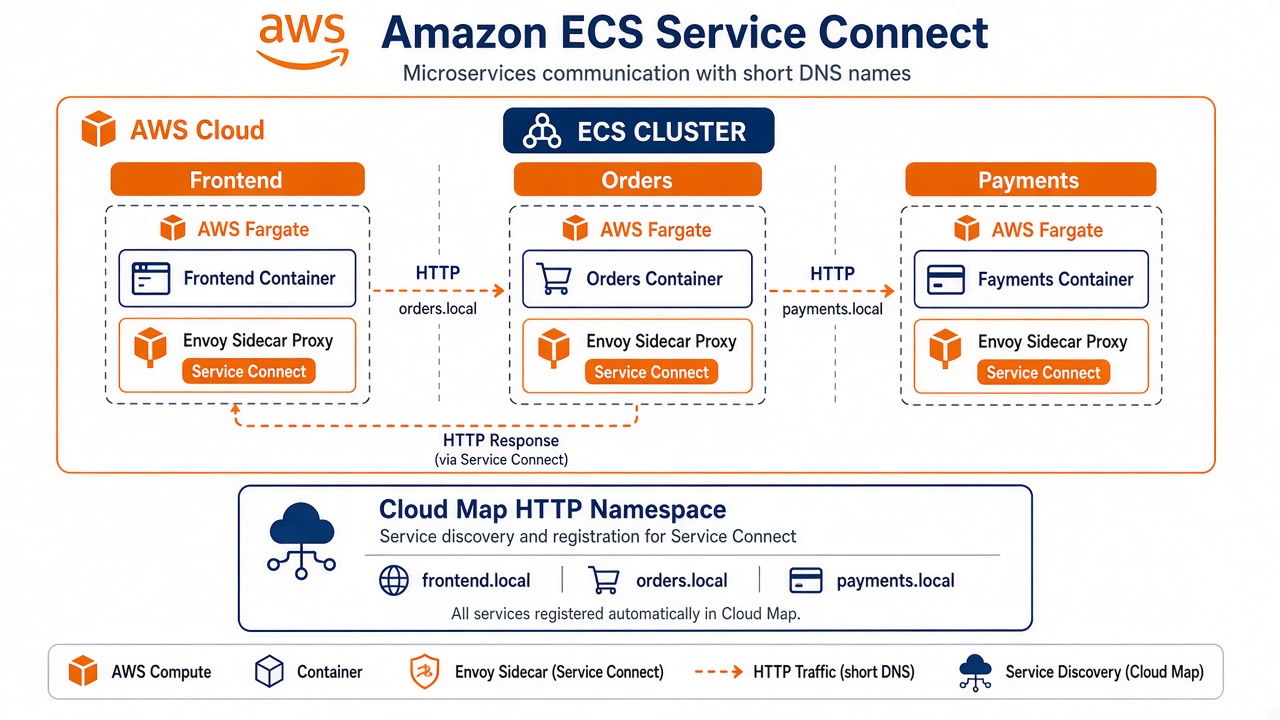
Part 2 — Service Connect in production
What it adds beyond discovery
Service Connect is not “better DNS.” It is ECS-managed service mesh configuration:
- Registers endpoints in a Cloud Map HTTP namespace (logical grouping; not the same as your private DNS zone for discovery).
- Injects a Service Connect proxy (Envoy) into each task in participating services.
- Exposes short endpoint names (
orders,payments) your app uses as hostnames. - Provides L7 routing, outlier detection, request metrics, optional access logs, and optional TLS (AWS Private CA).
AWS diagram reference: Service Connect concepts and deployment components.
Client vs client-server services
| Type | Namespace | Endpoints (services[]) | Who calls whom |
|---|---|---|---|
| Client-server | Required | At least one portName + clientAliases | Other SC tasks call this service by alias |
| Client | Required | Empty services: [] | This task calls others; not published as SC endpoint |
A frontend behind an ALB is often client-server if other ECS services must call it, or client-only if it only calls backends.
Production deployment order (AWS-documented)
When adopting Service Connect on a live chain (frontend → backend):
- Add client-server SC config to the backend first, using a
clientAliasDNS name the frontend already uses. - Validate backend deployment (metrics, errors, rollback if needed).
- Add client (or client-server) SC to the frontend.
- Only new tasks run the proxy—plan for rolling deployments.
Source: Service Connect components — rollout.
The /etc/hosts startup caveat
Service Connect aliases are applied when the task starts. If a client task boots before a server registers, the client may not resolve the alias until redeployed. This is a top production incident pattern.
Mitigation: deploy servers first; force new deployment on clients after servers are stable; automate client redeploy in pipeline after backend GA. Track containers-roadmap #2692.
TLS, access logs, and shared namespaces
- TLS: Console → Namespaces → service → Update → Service Connect → Turn on traffic encryption (enable TLS). Requires infrastructure IAM role and PCA.
- Access logs: Service Connect section → Access log configuration → JSON or TEXT (access logs).
- Cross-account: Share Cloud Map namespace via RAM; use namespace ARN in SC config (shared namespaces).
Console walkthrough — Service Connect
Step 1 — Task definition: named port mappings
Service Connect requires named ports and L7 protocol on the application container port mapping.
- Task definitions → Create new task definition → Fargate or EC2.
- Container definition → Port mappings → Add port mapping.
- Set:
- Container port: application port (e.g.
8080) - Protocol: TCP
- Port name:
orders-api-8080-tcp(remember this string) - App protocol:
httporgrpc
- Container port: application port (e.g.
- Register the task definition.
Reference: Service Connect configuration overview — port names.
Step 2 — Create or pick an HTTP namespace
- ECS console → Namespaces → Create namespace.
- Type: suitable for Service Connect (ECS creates/associates HTTP namespace for SC—follow console prompts; do not reuse your DNS private discovery namespace unless you understand the split).
- Name example:
mesh-prod.
Step 3 — Create a client-server service (backend)
- Clusters → Create service.
- Task definition: revision with named port.
- Networking:
awsvpc, security group allows ingress from other task SGs on app port (and from ALB SG if public). - Expand Service Connect → Use Service Connect.
- Namespace:
mesh-prod(or shared ARN). - Service Connect configuration → add a row:
- Port name:
orders-api-8080-tcp(must match task definition exactly) - Discovery name / DNS name:
orders(short name clients will use) - Port:
8080(client alias port—what callers connect to)
- Port name:
- Optional: enable access logs and traffic encryption.
- Create service and wait until steady state.
Step 4 — Create a client service (caller)
- Create another service with SC enabled on the same namespace.
- Leave Service Connect service configuration empty (client-only) unless this service also exposes ports.
- Ensure the application environment uses
http://orders:8080(matching client alias, not a typo likeorders.mesh-produnless you configured that FQDN-style alias).
Step 5 — Validate inside the client task
cat /etc/hosts | grep orders
curl -v "http://orders:8080/health"
Check CloudWatch → Service Connect metrics for the namespace (monitoring).
Part 3 — Using Service Connect and Service Discovery together
Production clusters often run both:
                    Internet
                       │
                       ▼
                 ┌───────────┐
                 │    ALB    │
                 └─────┬─────┘
                       │
         ┌─────────────▼─────────────┐
         │  frontend (SC client)      │
         │  mesh-prod namespace       │
         └─────────────┬─────────────┘
                       │  http://orders:8080
                       ▼
         ┌───────────────────────────┐
         │  orders-api (SC server)    │
         └─────────────┬─────────────┘
                       │  http://payments:8082
                       ▼
         ┌───────────────────────────┐
         │  payments (SC server)      │
         └───────────────────────────┘

  Parallel: reporting-worker.ec2.svc.prod.internal
resolves via Cloud Map → same orders tasks (for batch jobs)| Traffic | Mechanism |
|---|---|
| Frontend → Orders → Payments | Service Connect short names |
| Spark job on EC2 → Orders API | Service Discovery FQDN |
| Public users → Frontend | ALB (Service Connect does not replace this) |
Attach service registry to orders-api in addition to Service Connect if non-ECS callers need DNS—two registration paths, one task.
Part 4 — Production storage for ECS tasks
Storage choice drives availability, backup, cost, and blast radius on deploy. ECS supports multiple volume types; Fargate and EC2 differ.
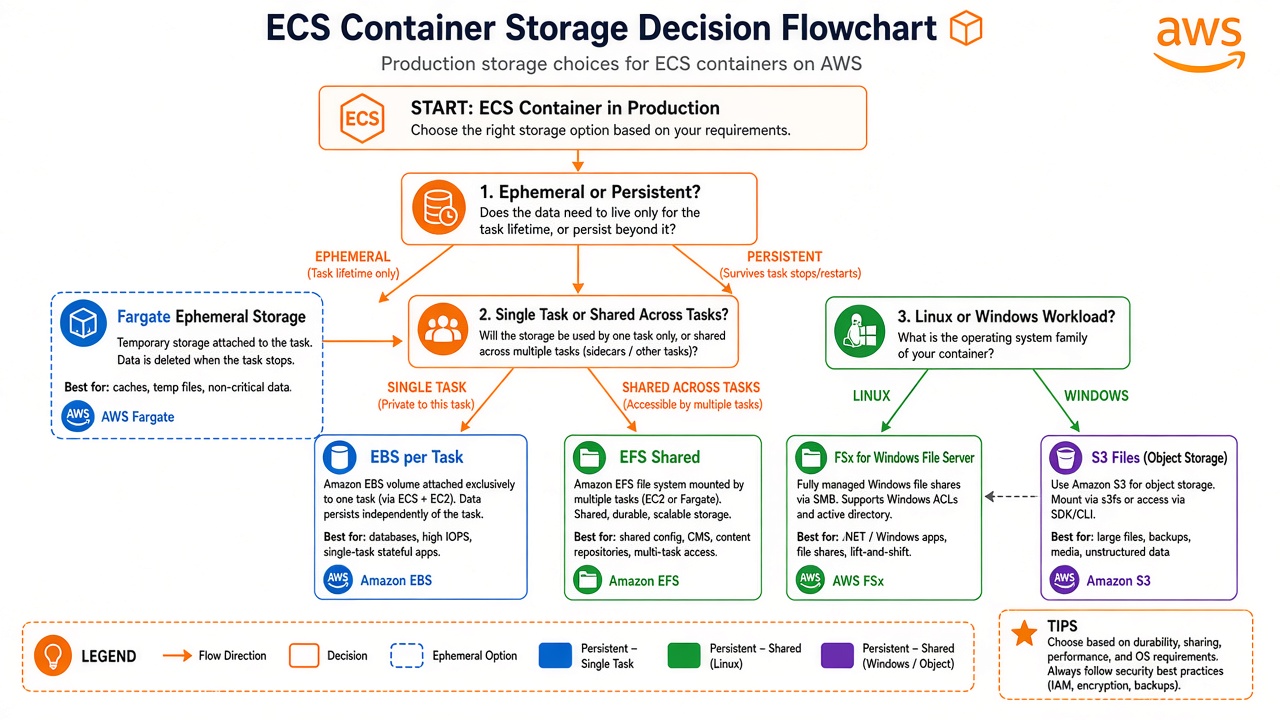
Authoritative matrix: Storage options for Amazon ECS tasks.
Decision table (production-oriented)
| Need | Mechanism | Persistence | Fargate | EC2 | Production notes |
|---|---|---|---|---|---|
Container logs, /tmp, crash-safe nothing | Fargate ephemeral (20 GiB default, up to 200 GiB) | Lost on stop | Yes | N/A | Tune ephemeralStorage in task definition; not for databases |
| Single-task block storage, high IOPS | Managed EBS per task | Ephemeral when service-managed; snapshot at deploy | Linux Fargate 1.4+ | Yes | One volume per task; configuredAtLaunch: true; prod uses gp3/io2 at service volumeConfigurations |
| Shared POSIX, multi-task R/W | EFS | Persistent | Yes | Yes | Use access points per service; encrypt in transit; watch throughput mode |
| Windows shared SMB | FSx for Windows File Server | Persistent | No | Yes | .NET monoliths, shared C:\app\data |
| NetApp ONTAP, NFS/SMB enterprise features | FSx for ONTAP (mount) | Persistent | Via S3 access points pattern | Native mount | Snapshots/cloning at filesystem layer |
| Analytics / ML on S3 objects | Amazon S3 Files | Persistent (S3) | Yes | Yes | File interface to bucket; not POSIX |
| Host path / legacy | Bind mount | Ephemeral on Fargate | Limited | Yes | Prefer EFS over bind on shared EC2 |
| Docker volume plugins | Docker volumes | Varies | No | Yes | Third-party storage drivers |
Fargate ephemeral storage (still “filesystem”)
In the console: Task definition → container → Storage and logging → Ephemeral storage (GiB). Use for writable layers, temp files, and caches—not for data you cannot lose.
Reference: Fargate task storage.
Managed EBS per task — production pattern
EBS on ECS is managed attachment: you declare mount points in the task definition, then supply volume size/type/IOPS at service create/update or run-task.
Console — task definition
- Task definitions → Create → container → Volumes → Add volume.
- Volume type: configure at deployment (wording: Configure at deployment /
configuredAtLaunch). - Mount points: container path e.g.
/var/lib/postgresql/data,readOnly: false.
Console — service with EBS
- Create service → select task definition with deferred EBS config.
- Section Volume (appears when task definition supports it):
- Volume type:
gp3(dev/staging) orio2(latency-sensitive prod) - Size (GiB), IOPS, throughput
- Encrypted: on + KMS key
- Infrastructure role:
ecsInfrastructureRole(EBS volumes)
- Volume type:
- Optional snapshot ID to seed data (new volume from snapshot—cannot attach existing volume ID).
Critical production fact: For tasks under a service, attached EBS is treated as ephemeral at the task lifecycle level—when the task stops, the volume is torn down unless you use patterns documented for standalone tasks and snapshots. Do not put a multi-AZ database solely on per-task EBS behind a scaled service without understanding replacement behavior—use RDS/Aurora or EFS/shared storage architecturally.
Reference: Configure EBS at deployment, Defer volume configuration.
Amazon EFS — shared production filesystem
Use when multiple tasks must read/write the same files (uploads, ML features, WordPress wp-content, shared config).
Console — task definition
- Volumes → Add volume → EFS.
- File system ID, Access point ID (recommended for least privilege), Transit encryption: enabled.
- Mount point in container:
/mnt/efs.
Operations checklist
- EFS in same region; mount targets in each AZ you run tasks.
- Security group: NFS 2049 from task SG to EFS mount target SG.
- Throughput mode: bursting vs provisioned for steady high write rates.
- Lifecycle management to IA for cost on cold data.
- Backups: AWS Backup or EFS replication for DR.
Reference: Use Amazon EFS volumes with Amazon ECS.
FSx for Windows and ONTAP
- FSx Windows: task definition volume type FSx for Windows File Server; domain join and SMB auth; typical for IIS/.NET farms on EC2 capacity.
- FSx ONTAP: high-performance shared NFS/SMB; often EC2 launch type with NFS mount in task definition. Fargate access may use S3 Access Points for FSx ONTAP per AWS docs on S3 Files / FSx patterns.
Amazon S3 Files
Mount bucket-backed file interface for workloads that need high-throughput S3 data without rewriting the app to SDK calls. Configure per S3 Files for ECS.
Anti-patterns at production scale
| Anti-pattern | Why it hurts |
|---|---|
| Storing DB primary data on ephemeral Fargate disk only | Data loss on every deploy |
| EFS for latency-sensitive random IOPS DB | Wrong tool—use block + RDS |
| Per-task EBS for a 50-replica stateful service | Each task has different disk; scaling does not share state |
| Service Connect without redeploying clients after new backend | Mystery Name or service not known |
One security group 0.0.0.0/0 for “simplicity” | East-west compromise blast radius |
Part 5 — End-to-end production reference
Networking + storage on one service
Example: orders-api on Fargate
- Ingress: public ALB → target group → task port 8080.
- East-west: Service Connect name
ordersinmesh-prod; payments callshttp://orders:8080. - Discovery: Cloud Map
orders-api.svc.prod.internalfor Lambda settlement job. - Storage: EFS access point
/orders/uploadsfor invoice PDFs; no database files on EFS—Aurora for OLTP. - Secrets: Secrets Manager or SSM via task execution role—not on disk.
Security groups (minimum)
| Source | Destination | Port |
|---|---|---|
| ALB SG | orders task SG | 8080 |
| payments task SG | orders task SG | 8080 |
| orders task SG | EFS mount target SG | 2049 |
| orders task SG | VPC endpoints / NAT | 443 (AWS APIs) |
Observability
- Service Connect: namespace metrics + access logs.
- Service Discovery: Cloud Map
InstancesHealthy/ custom health. - Storage: EFS
BurstingCreditBalance, EBSVolumeQueueLength(if using io2/gp3 monitoring). - ECS: task stopped reason, deployment circuit breaker.
Console quick links
| Task | Console entry |
|---|---|
| ECS clusters | ECS v2 console |
| Cloud Map namespaces | Cloud Map |
| Service Connect namespaces | ECS → Namespaces |
| Task definitions (ports/volumes) | ECS → Task definitions |
| EFS file systems | EFS console |
| EBS volumes (standalone AWS view) | EC2 → Volumes |
Further reading
- Amazon ECS Service Connect
- Using service discovery
- Troubleshoot Service Connect (re)
- Use Amazon EBS volumes with Amazon ECS
- Use Amazon EFS volumes with Amazon ECS
- Amazon ECS supports EBS integration (AWS News Blog)
- Increase Fargate disk / EBS (re)